In a previous post, I explained how Jan offers a single interface for interacting with multiple LLMs from different providers. Although it’s powerful and flexible, Jan is mainly designed as a simple frontend. If you want to build your own custom applications around LLMs, you need a different approach.
Ollama is an open-source platform for running and managing LLMs locally. Although it offers a GUI and access to cloud models, it’s mainly used through the command-line interface and its API. If that all sounds like gobbledegook, Jan is a friendlier option.
For anyone who’s still here, Ollama is like Docker, but for LLMs. With Ollama, you can pull and configure LLMs. Once you’ve set up your LLM, you can interact with it through the CLI or applications that you’ve built. Crucially, everything stays on your device, so you’re not sharing your data with anyone else.
Although that might appear fiendishly complicated, I’ll share a simple example so you can see how it works.
Step 1 - Install Ollama
You can download Ollama for macOS, Linux, Windows. Go to the download page, copy the command, and paste it in your terminal. Alternatively, you can download and manually install a .dmg or .exe file.
Once installed, you can access Ollama through the CLI.
Step 2 - Pull and run an LLM
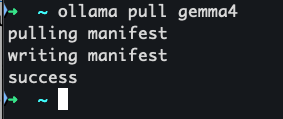
In the CLI, type: ollama pull gemma4.
🤔 If you get an error message, you might need to start Ollama manually with ollama serve.
This command downloads Google’s gemma4 model to your computer. Depending on the size of the model and the speed of your internet connection, this could take up to a few minutes.
To find more models, browse the Ollama library.
To start the model, run: ollama run gemma4.
You’ll then see a prompt where you can start interacting with it:

Type in your question and wait for a response.
In this example, I asked the LLM to explain how to use virtual environments in Python. I received a detailed and clear explanation, along with several examples.
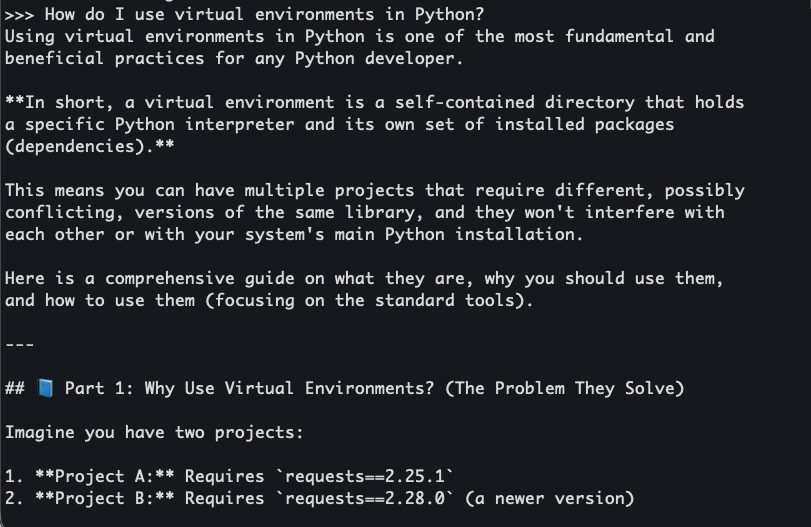
Although I’m using a mid-range MacBook, I got the full response in around 30 seconds.
Through the CLI, you can also set some parameters for your query. For example:
/set parameter temperature 0.2
The temperature parameter reduces the number of hallucinations, improving your chance of getting a factual response. The higher the number, the more fanciful the suggestion.
You can also set some context to ensure the responses are pitched at an appropriate level:
/set system "You are a senior Python developer who explains things clearly to beginners.”
It would be annoying if you had to set those parameters each time. Fortunately, there’s a better way of doing it.
Step 3 - Create a Modelfile
A Modelfile is like a Dockerfile - you can use it to create your own flavour of that model. The filename is just Modelfile, with no extension. Here’s an example:
FROM gemma4
SYSTEM """
You are a friendly and encouraging Python tutor. You explain concepts simply and concisely, and always include a short code example. """
PARAMETER temperature 0.2
PARAMETER num_ctx 8192
FROMis the model you want to use. In this case, it’sgemma4.SYSTEMis the prompt, where you’re providing some context.- The
temperatureparameter is hopefully making the responses less excitable. - The
num_ctxparameter is limiting the context window to 8,192 tokens so it doesn’t use too much memory and crash my laptop.
If I want to use this customised version, I run the following command from the location of the Modelfile:
create my-gemma -f Modelfile
This creates a new model called my-gemma, which I can interact with in the same way that I did with gemma4. So, I can type ollama run my-gemma and then I don’t need to reenter my parameters.
To delete that customised model, type: ollama rm my-gemma.
What else can you do with Ollama?
If you’re even only moderately good at coding, you can create all sort of tools with Ollama. For some guided experiments, I strongly recommend Laurence Moroney’s Run AI Locally with Gemma and Ollama on LinkedIn Learning.
Ollama uses the same API framework as OpenAI, so there are existing Python libraries you can use.
For instance, this ridiculously short piece of Python code creates a chatbot with a GUI that you can use through your web browser:
import os

from openai import OpenAI

client = OpenAI(
    base_url="http://localhost:11434/v1",
    api_key="ollama",
)

question = input("Ask Gemma: ")

response = client.chat.completions.create(
    model=os.environ.get("GEMMA_MODEL", "gemma4"),
    messages=[{"role": "user", "content": question}],
)

print(response.choices[0].message.content)
You can also connect Ollama to Claude or ChatGPT, meaning you can use multiple commercial LLMs through a single interface.
There are heaps of possibilities. Hopefully, I’ve given you a flavour here.
Conclusion
Although I now mainly use Jan for day-to-day chatbotting, I like the fact that it’s easy to use Ollama at the CLI and create my own model flavours. That way, I can invoke a Python expert or a Node expert without needing to leave the terminal. Ollama is an excellent tool for getting more control over generative AI tools and even for creating your own.
We discuss Jan and other alternatives in my workshop Using AI Responsibly in Your Research and Writing.