Mindmapping software can often feel overly rigid and complicated for capturing ideas quickly. Scapple, from the makers of the brilliant Scrivener, is a free-form, non-linear application for capturing your thoughts. It’s the closest software can get to a piece of paper and a pen – but you never run out of space.
Scapple is available for both Mac and Windows. I’m basing this post on the Mac version, but it works broadly the same on both platforms.
Creating notes in Scapple
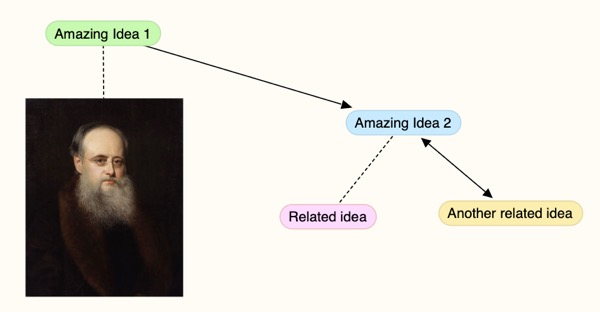
You start off with a blank canvas and then double-click anywhere to create a note. To connect notes, just drag and drop one onto the other. By default, they’re connected by a dotted line, but you can also choose directional arrows. As you can see in this example, you can drag images onto your canvas, too. The portrait is of Victorian novelist Wilkie Collins, who was well-known for having a lot of ideas, mainly after being a bit heavy handed with the laudanum.
With keyboard shortcuts you can easily create linked notes above, below, and to the left or right of your central idea or theme.
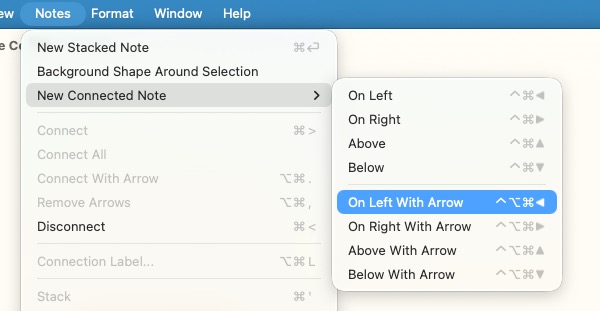
Notes can also be stacked if you prefer a more ordered appearance. Either use Cmd + Enter (Mac) or Ctrl + Enter (Windows) to create a stacked note underneath your current note, or select some existing notes and press Ctrl/Cmd + ’ (apostrophe) to stack them.
Selecting multiple notes is simple – just draw a box around them with your cursor. To group them more permanently, you can add a background shape.
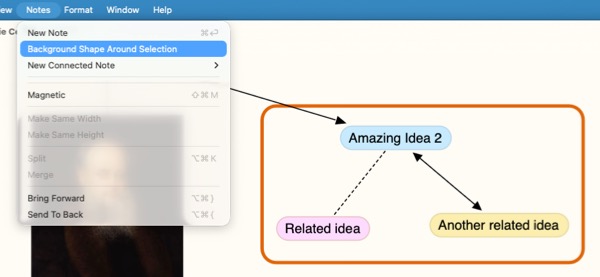
Add more notes by dragging them into the shape.
Formatting your notes
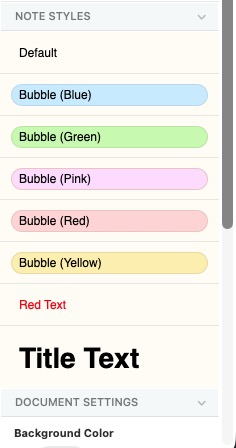
The Inspector (already familiar to Scrivener users) allows you to format all the text with different fonts, colours, and styles. There is also a variety of bubbles and backgrounds from which to choose. I’ve seen some frustration in the online community about the limited styling options. It’s important to emphasise that Scapple is an intentionally simple tool. If you require a lot of control over the appearance of your mindmap, an alternative like Miro might be more appropriate. And if you’re already using Obsidian, you could experiment with the Canvas feature to work directly with your existing notes.
Importing documents into Scapple
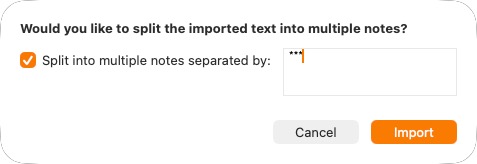
Maybe you’ve already captured your ideas elsewhere. Well, you can drag a Word document into Scapple and then tell it how to divide the text into notes. In this example, I’ve separated my ideas with three asterisks. Each block of text becomes a separate note in Scapple.
Using Scapple with Scrivener
If you’ve seen Scrivener, you’ll know that one of its many joys is the ability to break documents down into small sections. You can actually import your Scapple document into Scrivener (using the OPML format), and each of your notes becomes a document within a project.
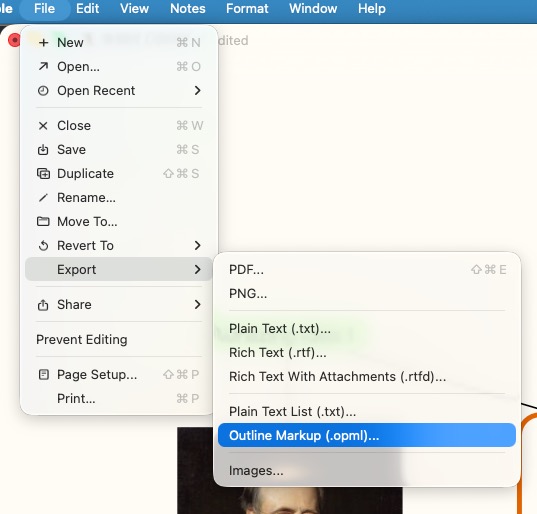
Alternatively, you could export it as a PDF and display it alongside your writing using the split-screen feature.
It’s also possible to drag and drop a note from Scapple into your Scrivener Binder.
Even if you don’t use it with Scrivener, you can still export your Scapple as an image or text document for use in another application. Unlike a piece of paper, you can repurpose it in many ways and you can’t spill a cup of coffee on it. And the OPML format is compatible with sophisticated list tools, including Dynalist and Workflowy. These tools can help you move from a mindmap to a more hierarchical format that’s better suited for writing.
Conclusion
Scapple costs £18.99 for either the Mac or Windows edition. They offer a generous (non-consecutive) 30-day trial, giving you plenty of time to find out whether it’s right for you. I think it’s excellent value for money, given this is a one-off cost. Like Scrivener, Scapple also includes version control, so you can see previous iterations of your mindmaps.
I also love the fact that Scapple is straightforward. I started using it back in 2014 and it’s barely changed. The developers haven’t introduced unnecessary features or added an “exciting” new interface. You can learn how to use it in just 8 minutes, which is the length of the video tutorial.
If you’re writing a thesis, dissertation, or any academic piece longer than a few thousand words, I recommend giving Scapple a try to help get you started.
👉 I’m not affiliated in any way with Scapple or its developers. I just think it’s a great tool.