One of the questions I’m asked most frequently is whether it’s possible for EndNote users to switch easily to Zotero. Yes, it is! Many of the tutorials focus on exporting your library in RIS format. Although straightforward, this method doesn’t retain your PDF attachments, Groups, or formatting. In this tutorial, I’ll walk you through the XML method. XML is a more sophisticated file format that’s readable by many tools. You need to follow the instructions precisely, but you’ll get a much better result.
Export an XML file from EndNote
In EndNote, click File > Export. You’ll see a pop-up window like this:
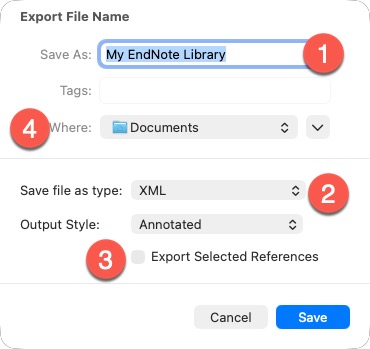
- Accept the default filename of My EndNote Library.
- Save file as type should be XML.
- If you want to export your entire EndNote Library, ensure Export Selected References is unchecked.
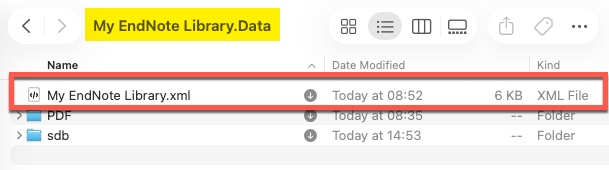
- 👉 And here’s the most important part: under Where, you need to navigate to your EndNote
.Datafolder:- Mac users: This is typically in Documents and has the same name as your library with
.Dataadded (e.g.,My EndNote Library.Data). - Windows users: This is typically in
My DocumentsorMy Documents\EndNoteand also has.Dataadded to your library name.
- Mac users: This is typically in Documents and has the same name as your library with
💡 This folder contains your PDFs in subfolders. By placing the XML file here, you give Zotero access all your PDFs so it can attach them to the imported records.
Import the XML file into Zotero
⚠️ Before importing: It’s a good idea to temporarily disable automatic sync in Zotero. Go to Edit > Settings (Windows) or Zotero > Settings (Mac), click the Sync tab, and uncheck Sync automatically. You can re-enable this after checking your imported library looks correct.
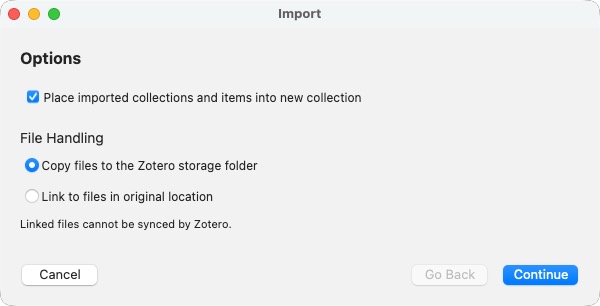
In Zotero, click File > Import, then locate the file you just exported from EndNote. You then have a couple of options:
Check the box if you want to place your imported items in a new Collection (Zotero’s equivalent of Groups) with the same name as your saved file (e.g.
My Endnote Library). If you leave the box unchecked, they’ll just be added to My Library.Choose whether you want to copy any attachments to your Zotero storage folder - they then contribute towards your storage limit of 300Mb. If you choose Link to files in original location, they won’t be synced by Zotero.
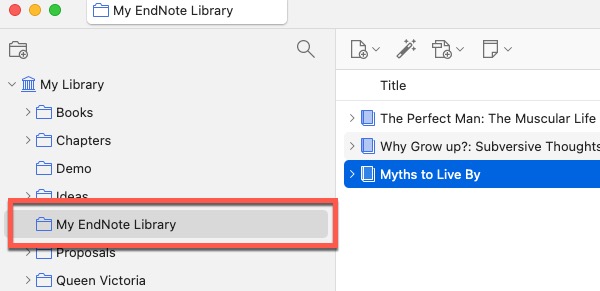
You should now see that Zotero has created a new Collection called My EndNote Library, which contains all your imported items, retaining the groups, attachments, and formatting.
Conclusion
I think this method is both effective and straightforward, provided you save your .xml file in the right place. For more information and troubleshooting, visit the Zotero support page.
Creating this tutorial has reminded me of EndNote’s clunkiness. If you’re moving to Zotero, I feel sure you’re going to be much happier.
I’m currently creating a Getting Started with Zotero online course. Add your email below to be the first to know when it’s launched: