I often meet researchers who are unhappy with their bibliographic referencing tool, but are put off by the potential faff. They imagine it would be as much fun as changing banks. Well, if you’re thinking of moving from Mendeley to Zotero, I have good news: it’s very easy.
There are two main methods. Let’s look at them in turn.
Method 1 - Export a RIS file from Mendeley
A RIS file is a format that allows citation tools to exchange data.
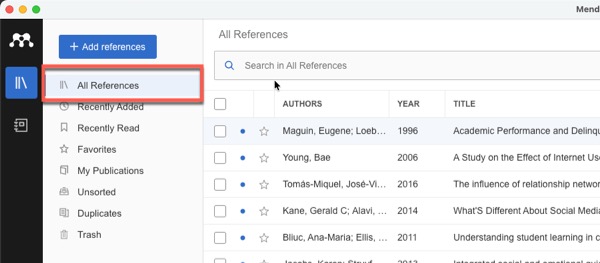
In Mendeley, make sure you have All References selected on the left, then click File > Export All > RIS and save the file somewhere you can easily find it. The name defaults to library, but you might want to call it something more distinctive like Mendeley.
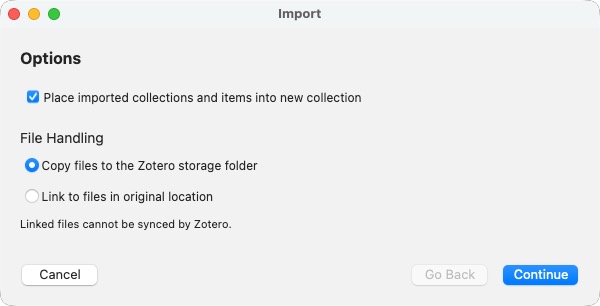
Open Zotero and click File > Import. Locate the file you just exported from Mendeley. You then have a couple of options:
Check the box if you want to place your imported items in a new collection with the same name as your saved file. If you leave the box unchecked, they’ll just be added to My Library.
Choose whether you want to copy any attachments to your Zotero storage folder - they then contribute towards your storage limit of 300Mb. If you choose Link to files in original location, they won’t be synced by Zotero.
There are two problems with this method:
- It doesn’t always export PDFs attachments.
- You won’t retain any of your Mendeley collections, only their contents.
However, Method 2 is the answer.
Method 2 - Import from Mendeley.com
If you’re using Zotero 7, you can take advantage of a more sophisticated approach where Zotero talks directly to Mendeley.
⚠️ Before importing: It’s a good idea to temporarily disable automatic sync in Zotero. Go to Edit > Settings (Windows) or Zotero > Settings (Mac), click the Sync tab, and uncheck Sync automatically. You can re-enable this after checking your imported library looks correct.
In Zotero, click File > Import, then Mendeley Reference Manager online import.
You’re then prompted for your Mendeley username and password. As the instructions explain, Zotero doesn’t store the password, so this is perfectly safe.
As with Method 1, you can choose whether to include imported items in a new collection so they’re more conspicuous.
You can also choose to ignore any previously imported items. This is useful if you’re importing in batches.
Depending on the size of your Mendeley library, the import might take anything from a few seconds to a few minutes.
As you can see in this screenshot, Zotero has imported my items from Mendeley and added them to an Imported collection. My attachments are included, too.
From here, I can select and drag items or collections into specific areas of my Zotero library.
When finished, you can delete this imported collection by right-clicking and choosing Delete Collection.
Conclusion
Method 1 would be simpler if it worked reliably, but Elsevier (the owners of Mendeley) have implemented changes that make it harder to access your own data. That’s probably a good reason to move to Zotero. If you use Method 2, it should only take you a few minutes. Good luck!
I’m currently creating a Getting Started with Zotero online course. Add your email below to be the first to know when it’s launched: