One of my many new year’s resolutions was to impose order on my Gmail inbox. Despite my best efforts, I have several gigabytes of emails - all of which makes it difficult to back up or migrate them. Many of those email are invoices, receipts, or statements. I need to keep them for my business records, but they’re seriously cluttering up my workspace.
Although I could create a mail archive with an email client like Thunderbird, that’s not very accessible. To find a specific invoice, I’d need to reimport those thousands of emails. I suddenly wondered whether there was a way of systematically saving the PDF attachments to a folder. After all, I don’t need the email itself, just the file. Needless to say, there wasn’t an especially straightforward method, or one that didn’t involve paying a third-party and giving them access to my mailbox. Finally, I discovered that I could run a script on my Gmail.
In this post, I’ll explain the steps involved.
⚠️ Of course, running scripts on your mailbox can lead to unexpected results. And your setup might be different. This is definitely a description, not a recipe!
Step 1 - Create a Script
Apps Script is a cloud-based JavaScript platform for Google Drive. It lets you automate tasks across Google products. As I have only conversational JavaScript, I asked Claude.ai to help me with the script. I felt safe doing so because:
- I understand enough to know whether the script was doing anything dangerous.
- I was only saving attachments and adding labels, not moving or deleting email.
You’d need to ensure that you also understand the code before running it. If that’s the case, here’s what to do:
- Go to https://script.google.com.
- Click New Project in the top left corner.
- Delete the placeholder code.
- Paste the following code.
function savePDFsToFolder() {
  // Set your folder name here
  var folderName = "Invoice PDFs";
  var labelName = "PDFs Archived";

  // Find or create the folder
  var folders = DriveApp.getFoldersByName(folderName);
  var folder;
  if (folders.hasNext()) {
    folder = folders.next();
  } else {
    folder = DriveApp.createFolder(folderName);
  }

  // Find or create the label
  var label = GmailApp.getUserLabelByName(labelName);
  if (!label) {
    label = GmailApp.createLabel(labelName);
  }

  // Search for unprocessed emails with invoice/remittance/receipt and PDF attachments
  var searchQuery = 'has:attachment filename:pdf (invoice OR remittance OR receipt) -label:"' + labelName + '"';
  var threads = GmailApp.search(searchQuery, 0, 100);

  for (var i = 0; i < threads.length; i++) {
    var messages = threads[i].getMessages();

    for (var j = 0; j < messages.length; j++) {
      var attachments = messages[j].getAttachments();

      for (var k = 0; k < attachments.length; k++) {
        var attachment = attachments[k];

        // Only save PDF files
        if (attachment.getContentType() === "application/pdf") {
          folder.createFile(attachment);
        }
      }
    }

    // Label this thread as processed
    threads[i].addLabel(label);
  }

  Logger.log('Processed ' + threads.length + ' email threads');
  Logger.log('Search for more with the same search or check if complete');
}
This script:
- Creates a folder called
Invoice PDFs(if it doesn’t already exist). - Finds a maximum of 100 emails with PDF attachments that also include the words invoice, remittance, or receipt (this is case insensitive, so also finds INVOICE, etc). Specifying a maximum of 100 reduces the likelihood of exceeding the 6-minute limit on execution time.
- Saves those attachments to the
Invoice PDFsfolder. - Adds a
PDFs Archivedlabel to the emails that have been processed. Any emails with this label are ignored the next time you run the script.
Step 2 - Run Your Script
To run the script:
- Save the script by clicking the Save project to Drive icon in the toolbar.
- Select the function name
savePDFsToFolder. - Click Run in the toolbar.
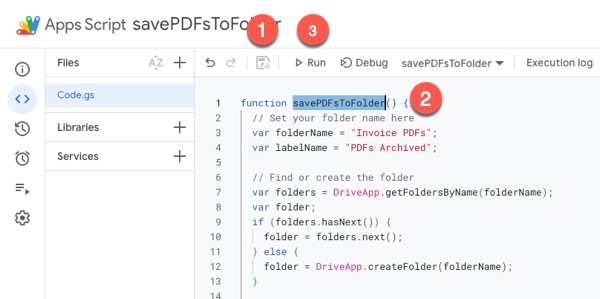
Accept any requests for authorisation. Naturally, the script needs access to both your Gmail and Google Drive.
The speed depends on the size of your files and the busyness of Google’s servers. My batches took roughly 3 minutes each. Once a batch has finished, click Run again. Repeat until the log shows that there’s nothing left to process.
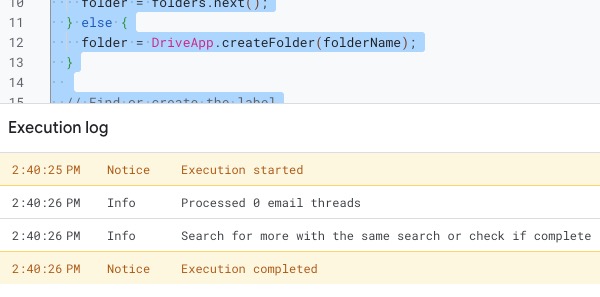
Step 3 - Check and Tidy
You should now have a Google Drive folder containing those PDFs. Also, all the emails processed now have the PDFs Archived label. If you’re confident that you’ve captured all the attachments, you can select and delete all the messages with that label or archive them elsewhere. You now have a much cleaner inbox! 🎉
Conclusion
This solution proved surprisingly straightforward and effective. Admittedly, I’d also saved quite a few invoices from the milkman, but those were easy to spot and remove. Once this script is set up, you can tweak the search terms to repurpose it. There’s also lots of documentation in App Scripts on all the other things you can do. That sounds like a dangerous rabbit hole to me, so I’m just going to stick with this script that solved my specific problem. I hope you find it helpful, too.