The Scratchpad might sound like something your cat would use, but it’s actually a very handy feature in Scrivener. Sometimes our writing can be interrupted by random thoughts; sometimes they’re even useful. With the Scratchpad you can quickly jot them down in a pop-up window and return to the task in hand. It’s not linked to any particular document so is perfect for anything that isn’t obviously related to your current project. The Scratchpad also works outside Scrivener, although it needs to be running in the background. As the Scratchpad floats freely, you can place it alongside any other application. This makes it ideal for taking notes while you’re reading online.
To open the Scratchpad, click Window then Show Scratchpad in the menu bar, or use the keyboard shortcut Cmd + Shift + ⏎ on Mac or Alt + Shift + ⏎ on Windows. As you’ll see in a moment, you can change this shortcut if it conflicts with another application.
The first time you open the Scratchpad, you’ll see a pop-up message explaining that your notes are stored separately from your projects. You can either accept the default location, or set your own in Scrivener’s preferences.
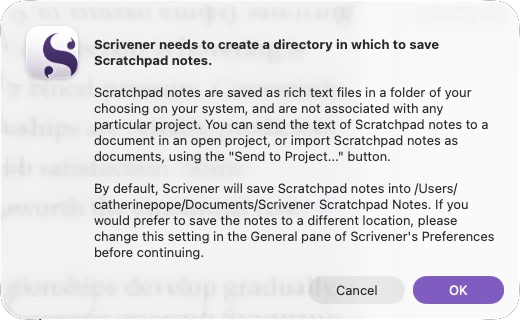
Click OK, and you’ll see the Scratchpad. To add a new note, click the + icon in the bottom left-hand corner. Give your note a title, then start typing in the box below.
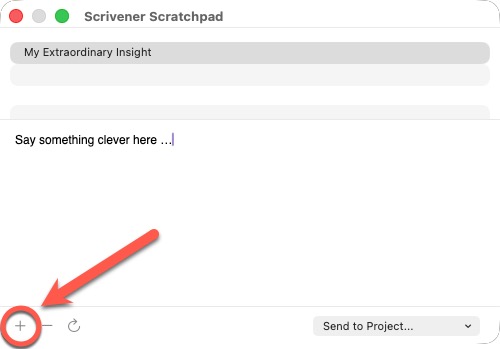
If the idea didn’t look so amazing once it was written down, select it in the list and click the - icon to delete it.
You can format the text by using the usual keyboard shortcuts for bold and italic. To add an image, drag it into the box.
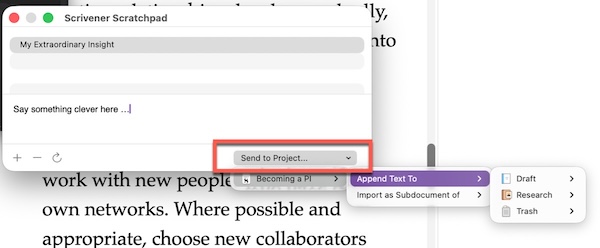
If you’ve written something brilliant on your Scratchpad, or have a useful quote to add to your writing, you can send it directly to your Scrivener project. In the bottom right-hand corner, click Send to Project, then choose either to append it to one of the existing documents in your open project (Append Text To), or create it as a new document (Import as Subdocument of).
Your notes stay in the Scratchpad until you delete them and they are accessible from any project. They are stored as separate RTF (Rich Text Format) documents and you can choose where they’re stored under the General tab in Scrivener’s Settings.
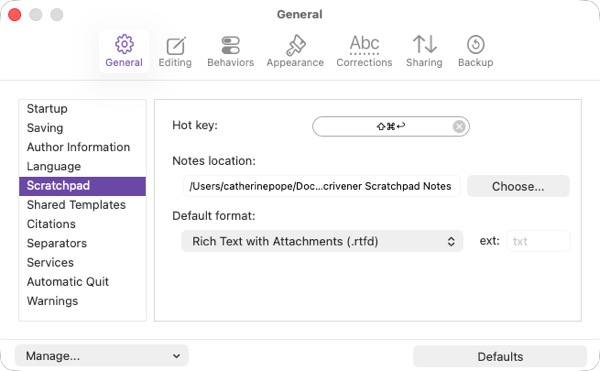
ℹ️ You can also change the format of your Scratchpad notes here. If you’re working on both Windows and Mac, make sure it’s set to RTF on both devices. The Mac default is .rtfd, which isn’t readable on Windows. And this is the place to configure your keyboard shortcut, or hotkey.
As this folder lives outside of your project, you can add RTF documents to it directly and load them into the Scratchpad.
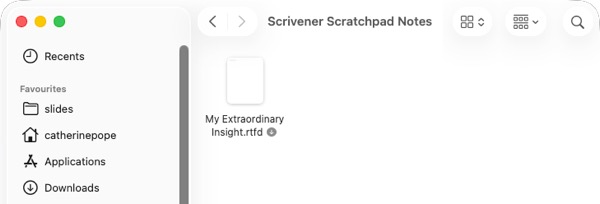
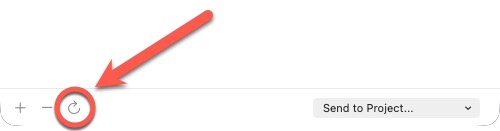
Once you’ve added them, click the Reload notes from disk icon at the bottom of the Scratchpad. This is useful if you already have some project-independent notes that you want to access within Scrivener.
⚠️ As the Scratchpad is not part of your Scrivener project, it isn’t automatically backed up. Make sure this directory is included in your regular backup routine.
So, that’s the Scratchpad. Not much fun for your cat, but very useful for you 😾
Stuck with Scrivener? I offer 1-2-1 coaching on building your confidence and improving your workflow.