Although Zotero works smoothly with Word, not everyone wants to dedicate the best years of their life to Microsoft products. While Google Docs won’t necessarily bring you much more joy, at least it’s free and doesn’t occupy half your hard drive. In this post, I’ll explain how you can use Zotero to create citations and bibliographies in a Google Doc.
To use Zotero with Google Docs, you need two elements:
- The Zotero desktop client. You can download it for Mac, Windows, or Linux.
- The Zotero connector for your browser. You can download it for Firefox, Chrome, and Edge (it’s automatically installed in Safari with the desktop client).
If the connector is installed correctly, you’ll see the Zotero menu in Google Docs:
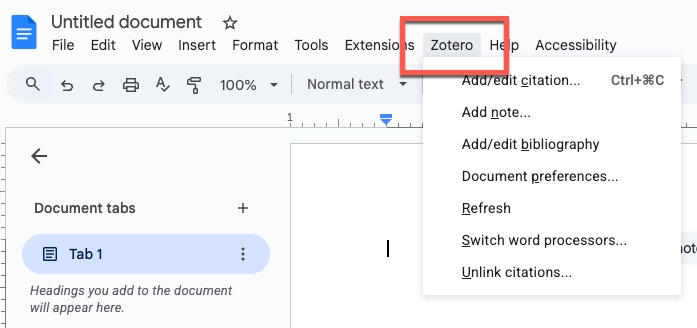
The first time you use the add-on, you’ll be prompted to give Zotero permission to access your Google Docs so it can add citations. The plugin doesn’t do anything else or access documents other than those in which you use it.
Once that’s done, you’re ready to go.
The Zotero functions are the same as the Word toolbar, but it’s a text-based menu, rather than icons.
👉 Before you can insert a citation, the Zotero desktop client must be running. If I had a pound for every time I forgot to open Zotero, I’d be able to retire a lot sooner.
This is a nuisance if you’re using a Chromebook or other device where you can’t install apps. One alternative is Paperpile, a cloud-based referencing tool that’s designed to work with Google Docs. You can import your Zotero library into it.
There are a few more limitations with the Google Docs version of Zotero. For details, see the documentation. If you’re just using Google Docs for a specific project or collaboration, the Zotero integration might be sufficient for your needs. Or maybe you just want a break from Word.
I’m currently creating a Getting Started with Zotero online course. Add your email below to be the first to know when it’s launched: