As your Zotero Library grows, it’s important to maintain quality. If it’s messy, it’ll be harder to find what you need and also you’ll spend a lot of time fixing citations. Here are some tips for keeping everything tidy.
Find Unfiled Items
Zotero can filter your Unfiled Items. This shows you anything that doesn’t yet belong to a Collection, such as random articles you saved without a specific project in mind.
This feature is under My Library in the left-hand pane.
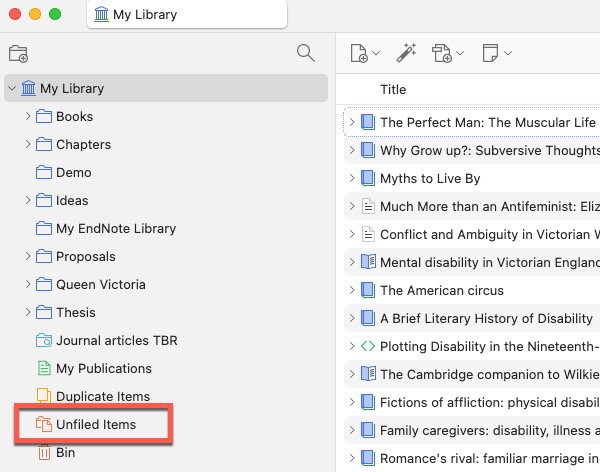
When reviewing the list, you can decide whether this is:
- A standalone item you want to keep for a future project.
- An item you can assign one or more Collections.
- An item that can be deleted.
Remove Duplicates
Sorting is a good way of spotting duplicates, but there’s actually a built-in duplicate detector in Zotero.
Click on Duplicate Items under My Library in the left-hand pane. This filters all the Items Zotero thinks are duplicates.
If you select one of them, Zotero asks you which version you want to keep. You can click between the versions to compare the details and decide which looks more accurate. Once you’ve selected your preferred version, click Merge 2 items.
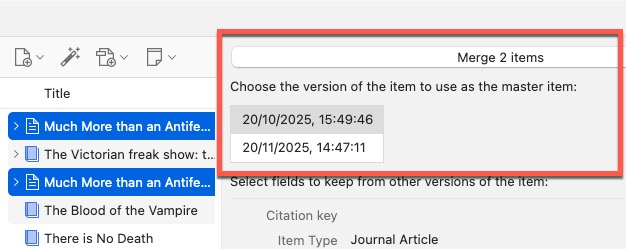
Before merging, always check what Zotero has identified – it sometimes flags multi-volume works as duplicates when you’d actually want to cite the volumes separately.
Deleting duplicates can help manage your Zotero storage.
Review Tags
Merging Tags
Over time, you’ll probably find you’ve created variations of the same tag, such as methods and research methods. Unless you’re using them consistently for specific purposes, it can cause confusion. To merge those two tags into methods, rename the research methods tag to methods. To rename a tag, right-click it in the tag selector and choose Rename Tag.
Disabling and Removing Automatic Tags
In a previous post, I showed you how to disable and remove automatic tags. In case they’ve crept back in, here’s a reminder.
Click Edit > Settings (Windows) or Zotero > Settings (Mac), then the General tab. Then uncheck the box that says Automatically tag items with keywords and subject headings.
Then delete any existing automatic tags by right-clicking them in the tag browser and choosing Delete Tag, or delete them all by clicking the small funnel icon next to the search box and choosing Delete Automatic Tags in This Library. If you’re not sure whether they’re useful, you can uncheck Show Automatic to just hide them.
Check Latest Additions
The data you import into Zotero isn’t always clean. That causes problems when you’re writing - for example, you get a shouty citation all in capitals, or it contains weird characters. It’s a good idea to get into the habit of reviewing your recent additions. Although you can edit the citation in your writing app, it’s best to edit the Zotero item itself - that way, it’s cleaner for next time.
You could use saved search to flag anything you’ve added in the last 7 days. Then it’s easy to go through and check them. If you allow them too many to build up, this becomes an unattractive and time-consuming task.
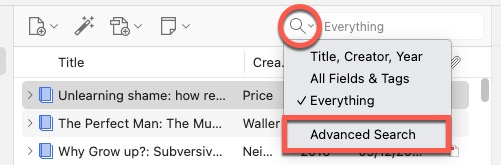
To create a saved search, you need to start with an Advanced Search. Click the tiny arrow next to the magnifying glass in the search box, then choose Advanced Search:
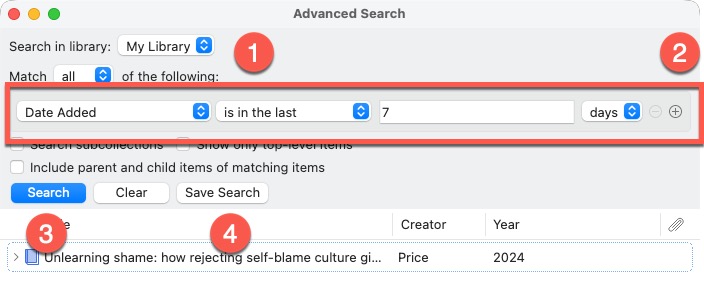
- Change the fields to Date Added, then in the last, then 7, then days. Of course, you can adjust this to whatever suits you.
- Click the + sign if you want to include additional criteria, such as a publication type.
- Click Search to see the results (if there aren’t any, change your scope to 30 days).
- Click Save Search and give it a name, e.g. Recent Additions, then OK.
You’ll now see your saved search at the bottom of My Library.

Any new additions are automatically added; anything that was added more than 7 days ago is automatically removed. If you’re unlikely to check it weekly, make sure you set this to a more realistic cadence.
If you carry out these Zotero housekeeping tasks at least monthly, your future self will thank you 😇
I’m currently creating a Getting Started with Zotero online course. Add your email below to be the first to know when it’s launched: