Although I have mixed feelings about the advent of AI, improved transcription tools have made my life a lot easier. Dictating rather than typing is much better for my creaky body, and it’s incredibly quick to generate high quality transcripts and captions for videos. A few years ago, it would take me almost a week to transcribe the content for an online course - now it’s less than an hour.
One of the problems with AI-based transcription tools is privacy. Although this isn’t an issue for my online courses, I don’t want to share my personal voice notes with anyone. This is why MacWhisper has become a vital tool for me.1
Using OpenAI’s Whisper API, MacWhisper helps you quickly transcribe audio files into text. Unlike with most other transcription tools, your data doesn’t leave your machine. This makes it much more suitable for sensitive projects, such as interviews.2
Here’s how I use MacWhisper:
1. Recording and transcribing voice notes
I mainly use MacWhisper to make notes on workshops, projects, and anything I’m learning. If a thought pops into my head, it’s usually much easier to say it than to write it down. MacWhisper works in most apps, so I can just press a key and start speaking. For any sensitive data, I use MacWhisper with a local Obsidian vault - that way, nothing leaves my laptop.
Although Apple devices have their own built-in dictation tool, I find MacWhisper a lot more reliable and flexible.
2. Transcribing webinars
I started delivering webinars long before Covid, so have an extensive library of recordings. MacWhisper quickly generates a good quality transcript that I can then turn into other learning materials, such as blog posts or scripts for online courses. Although, of course, the transcript needs tidying and updating, it provides a respectable first draft.
Through searching these transcripts, I often find my younger self speaking confidently about something I can barely remember 😳
3. Creating transcripts and captions
When you’re creating online courses, transcripts and captions are vital for accessibility. With MacWhisper, you just drag and drop your video or audio files, then it produces a transcript in CSV, docx, PDF, markdown, or HTML format. You can also get your subtitles as either .srt or .vtt files.
Since I’ve started using Adobe Premiere Pro, I’m less reliant on this MacWhisper feature. Premiere Pro has its own built-in tools which are very accurate. If data privacy were a concern, though, I’d still be using MacWhisper. Also, Adobe subscriptions are expensive.
What else can you do with MacWhisper?
I suspect I’m only using a tiny part of MacWhisper’s functionality. You can also automatically record meetings in Zoom, Teams, and just about any other platform. As I’m allergic to meetings, I’m hoping I never have to use this feature.
If you’re not dealing with sensitive data, you can link MacWhisper to OpenAI, Claude and many other models for more accurate results. This means the data leaves your laptop.
And there’s a MacWhisper phone app for recording and transcribing on the move.
What are some of the limitations of MacWhisper?
As you might’ve have spotted from the name, this tool only works on a Mac. As I’m lucky enough not to have used a Windows machine for many years, I don’t know what the PC equivalent might be.
MacWhisper is much less accurate than AudioPen. I find it sometimes doesn’t include any punctuation, or inserts a jaunty “Thank you for watching!” at the end of the transcript. For me, this is a reasonable compromise in exchange for data privacy. I use AudioPen where accuracy matters; MacWhisper where privacy is more important.
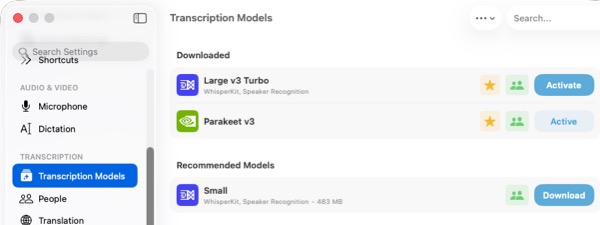
You can improve both the speed and accuracy of MacWhisper by downloading a larger transcription model. The largest models are several gigabytes, though, so you need plenty of space on your hard drive. MacWhisper works fine with the default model, but the larger one is more powerful.
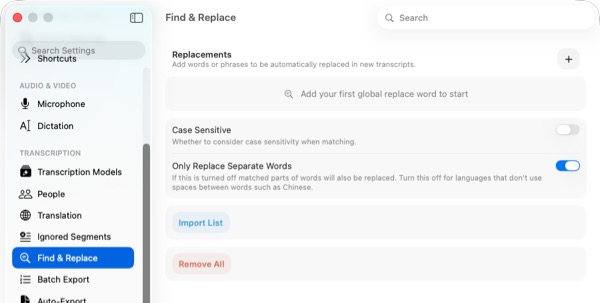
Also, you can use the Find and Replace settings to create a custom vocabulary for automatically correct any commonly mistranscribed words:
Conclusion
MacWhisper currently costs $59 for personal use. This is a one-off payment, and you’ll also receive updates. I think this is great value, given the quality and flexibility of the tool. Developer Jordi Bruin updates it regularly and quickly fixes any problems. This cost compares favourably with AudioPen, which is $99 a year. As MacWhisper runs locally, it’s also faster than AudioPen, and will handle much larger files. The limit in AudioPen is 15 minutes, whereas MacWhisper happily transcribes a one-hour recording. But, as I mentioned earlier, AudioPen scores much higher on accuracy. Although I don’t use MacWhisper for everything, it’s an important part of my workflow.
I’m not affiliated in any way with MacWhisper, I’m just an enthusiastic user. ↩︎
Although MacWhisper is much safer than other tools, you still need to check that it conforms to any data processing regulations at your institution. And you still need to be careful about where you store the transcript. ↩︎