Around a year ago, I published a tutorial on how to sync your AudioPen notes with Obsidian. This method worked brilliantly until recently, when it stopped importing the dates in a format Obsidian could read. Although the notes were all imported, they were no longer automatically attached to my daily journal entries through a backlink.
While seeking a solution, I discovered there’s a new official AudioPen plugin for Obsidian. When I say new, I mean it’s only appeared in the last month. Consequently, it’s not yet officially approved by Obsidian and it’s still quite basic. However, I was keen to adopt this plugin to simplify my workflow and remove my reliance on a third-party web hook. The previous AudioPen Sync plugin might still be a better solution if you want to customise the notes.
Here’s what I did to move to the new plugin and automatically attach AudioPen notes to my new and existing daily journal entries.
Step 1 - Install the official plugin
You can find the plugin by browsing the Community Plugins within Obsidian.
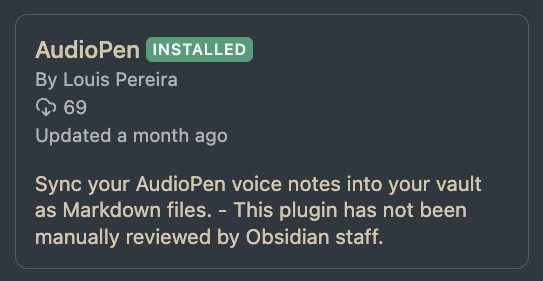
The instructions are available through the GitHub repo.
Step 2 - Add Bases code to my daily template
The official AudioPen plugin for Obsidian doesn’t use backlinks. That means you need some code to find and display the AudioPen notes with the same date as the daily note. The Bases feature in Obsidian makes this more straightforward than it sounds. Essentially, it turns your AudioPen folder into a flatfile database, then selects and displays the records that match the date.
Here’s the code I used in my daily template:
```base
filters:
  and:
    - file.inFolder("AudioPen")
    - 'created.format("YYYY-MM-DD") == this.file.name'
views:
  - type: table
    name: AudioPen notes
    order:
      - file.name
      - created
```
When I create a new daily journal entry, it automatically pulls in any AudioPen notes with the same date and displays them in a table:
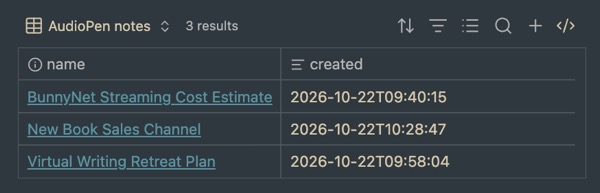
This example assumes your folder is called AudioPen and your journal entries are named using the date convention YYYY-MM-DD.
That works perfectly for new daily notes. But what about all the existing notes?
Step 3 - Add AudioPen notes to existing daily journal entries
This, as you might expect, is the trickier part. First, of course, I backed up my Journal folder when my daily notes are stored. I just right-clicked in Finder and chose Compress ‘Journal’. That gave me a reassuring zip file.
I then ran the following script, created with the help of Claude:
#!/bin/bash
# Appends the AudioPen Bases query to every daily note (YYYY-MM-DD.md)
# in the folder you give it, including any subfolders.
# Notes that already contain the query are skipped.
#
# Usage: bash add-audiopen-query.sh "/path/to/your/vault/Journal"

set -uo pipefail

JOURNAL="${1:-}"

if [ -z "$JOURNAL" ] || [ ! -d "$JOURNAL" ]; then
  echo "Please give the path to your Journal folder, e.g.:"
  echo "  bash add-audiopen-query.sh \"/Users/you/Vault/Journal\""
  exit 1
fi

read -r -d '' QUERY <<'EOF'
```base
filters:
  and:
    - file.inFolder("AudioPen")
    - 'created.format("YYYY-MM-DD") == this.file.name'
views:
  - type: table
    name: AudioPen notes
    order:
      - file.name
      - created
```
EOF

added=0
skipped=0

while IFS= read -r -d '' note; do
  if grep -q 'created.format("YYYY-MM-DD") == this.file.name' "$note"; then
    skipped=$((skipped + 1))
  else
    printf '\n\n%s\n' "$QUERY" >> "$note"
    added=$((added + 1))
  fi
done < <(find "$JOURNAL" -type f -name '[0-9][0-9][0-9][0-9]-[0-9][0-9]-[0-9][0-9].md' -print0)

echo "Added the query to $added note(s)."
echo "Skipped $skipped note(s) that already had it."
Then I ran the add-audiopen-query.sh file on my Journal folder. The Bases code was added to every journal entry, apart from those I’d already created with my new daily template 🎉
I could have copied and pasted it manually, but there were three years’ worth of entries.
Conclusion
This solution was a bit fiddly to set up. There’s also a risk that subsequent changes to the plugin will break my solution, although that seems unlikely. Given the quality of AudioPen and developer Louis Pereira’s dedication, it’ll probably only get better. Perhaps I won’t even need my Bases code. In the meantime, it means I don’t have to worry about losing my notes.